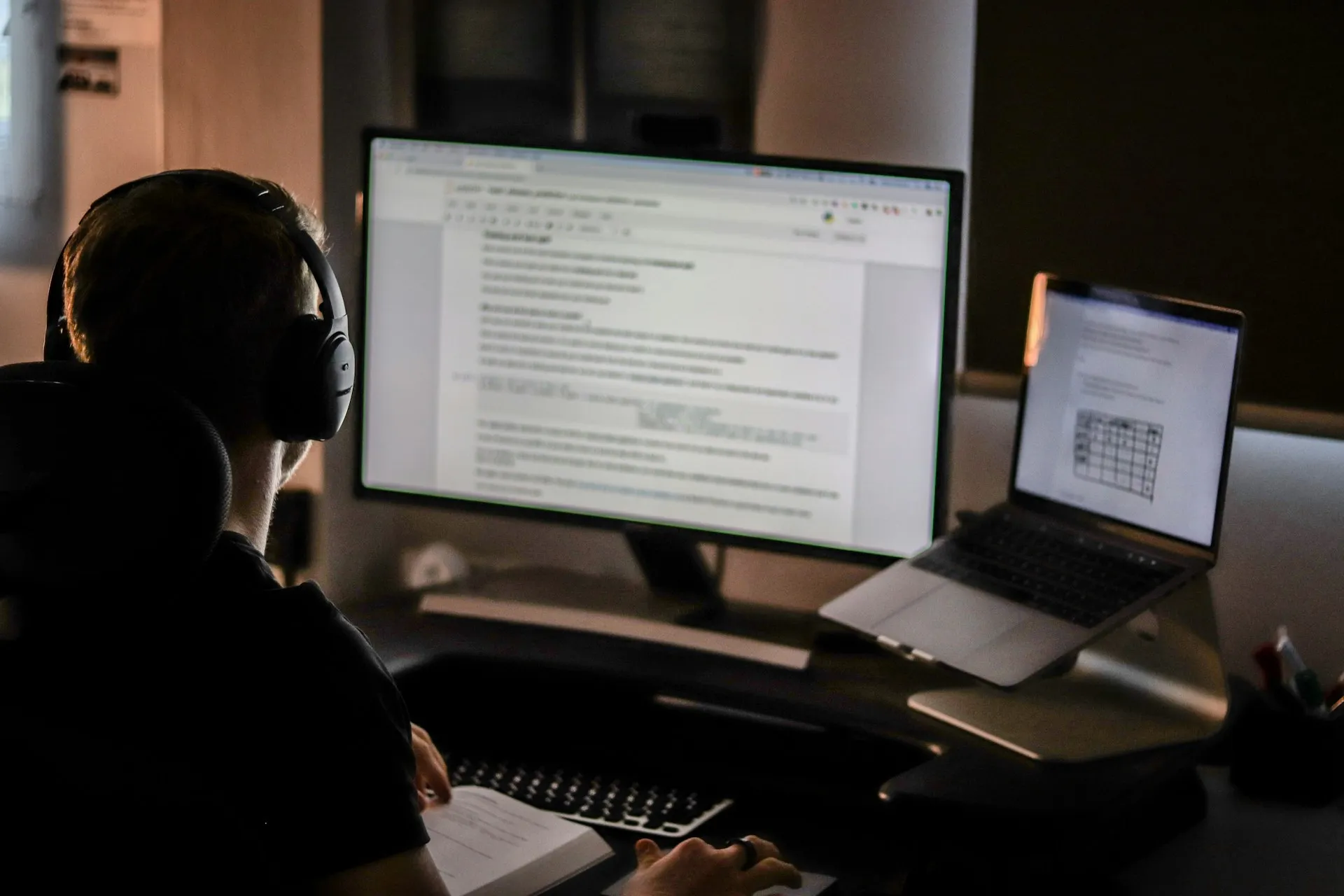
Monitor height plays a major role in how your neck and upper back feel during long periods of desk work. Even small mismatches between screen position and your natural line of sight can lead to tension, fatigue, or discomfort over time.
This guide explains how to set monitor height for comfortable sitting using simple, body-based cues rather than rigid measurements. It assumes your chair and desk height are already set and shows how monitor position fits into the rest of your workstation.
Why monitor height matters
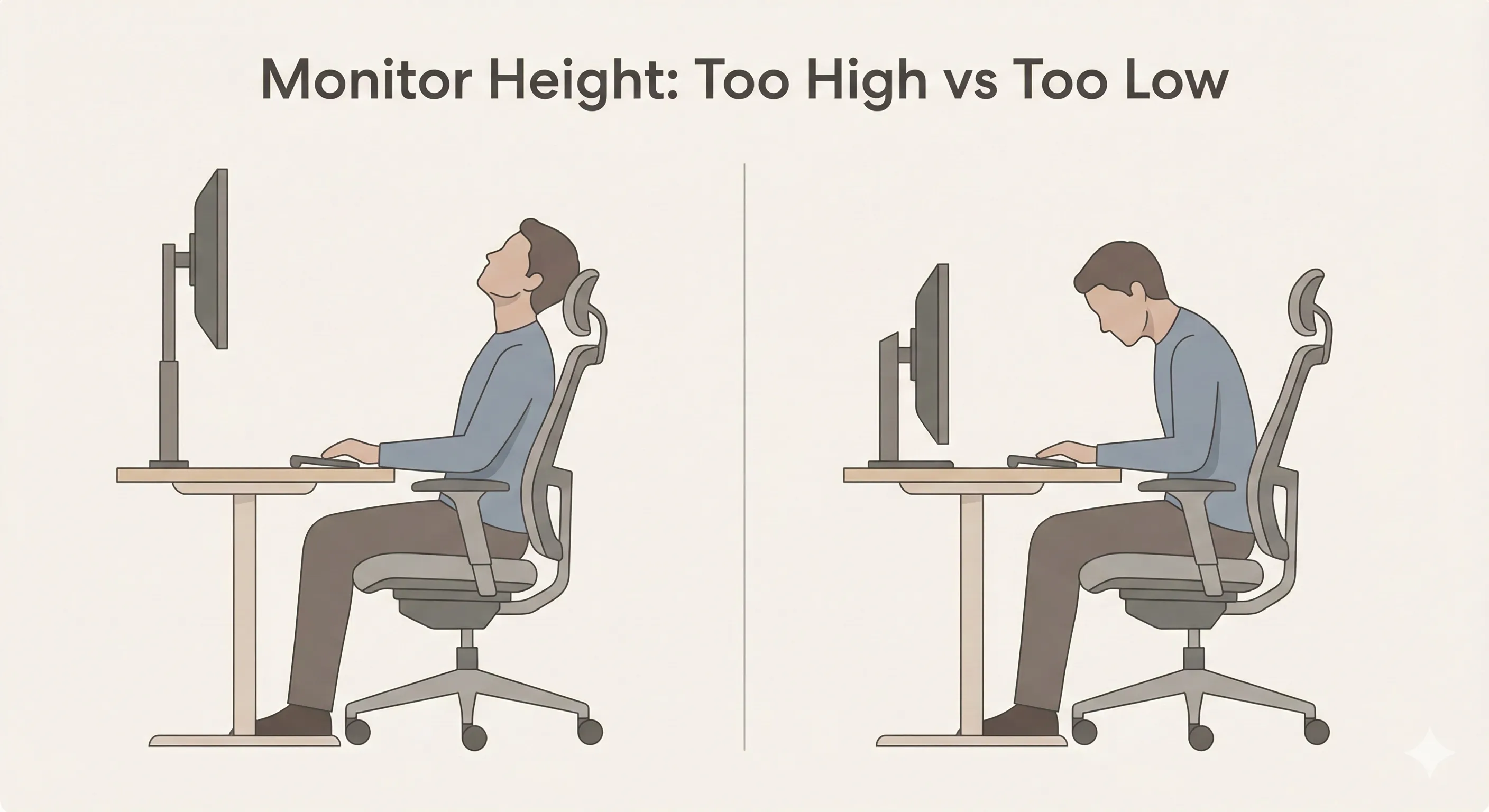
When monitor height is wrong, your head and neck compensate automatically. A screen that’s too high encourages you to tilt your head upward, increasing strain on the neck. A screen that’s too low often leads to looking down or leaning forward, which places extra load on the neck and upper back.
Unlike short glances at a phone or tablet, desk work involves holding your head in one position for long periods. Even mild misalignment becomes more noticeable the longer you remain seated. Setting monitor height correctly helps your neck stay in a more neutral position, reducing unnecessary strain throughout the day.
What “correct monitor height” actually means
There is no single monitor height that works for everyone. Body proportions, seating position, and screen size all influence what feels comfortable. Instead of focusing on precise measurements, it’s more useful to pay attention to how your neck and eyes feel when looking at the screen.
A comfortable monitor height generally allows:
- Your head to remain upright, not tilted up or down
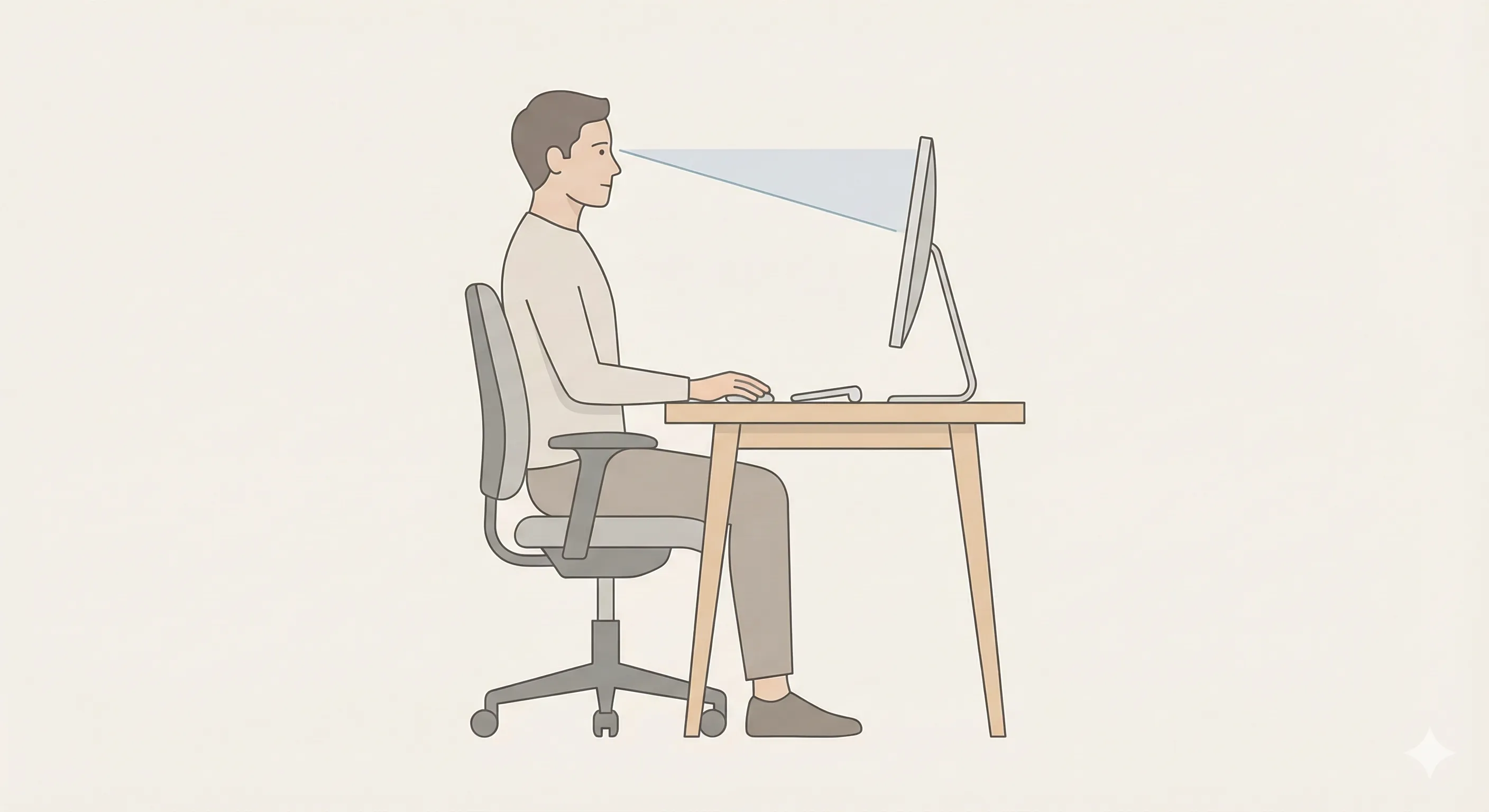
- Your eyes to look slightly downward toward the screen
- Your neck to stay relaxed rather than held in tension
If you feel the need to lift your chin or tuck it toward your chest while working, the monitor height likely needs adjustment.
How to set monitor height step by step
Start with your natural sitting posture
Sit comfortably in your chair with your back supported and your shoulders relaxed. Avoid “sitting up straight” unnaturally. The goal is to adjust the monitor to your posture, not the other way around.
Position the screen relative to your eyes
With your head in a neutral position, adjust the monitor so your eyes naturally fall slightly above the centre of the screen. You should be able to see the content clearly without lifting or lowering your head.
Check neck comfort after a few minutes
Spend a few minutes reading or typing. Pay attention to your neck rather than the screen. If you notice tension building, fine-tune the height slightly until your neck feels more relaxed.
Small adjustments can make a noticeable difference, so don’t hesitate to experiment within a narrow range.
Laptop screens versus external monitors
Laptop screens often sit too low for comfortable neck posture when placed directly on a desk. Looking down at a laptop for long periods commonly leads to neck flexion and slouching.
One solution is to raise the laptop screen closer to eye level using a laptop stand or stack of books. When you do this, an external keyboard and mouse usually become necessary so your arms and shoulders can remain relaxed. One example is the Lamicall Adjustable Laptop Stand.
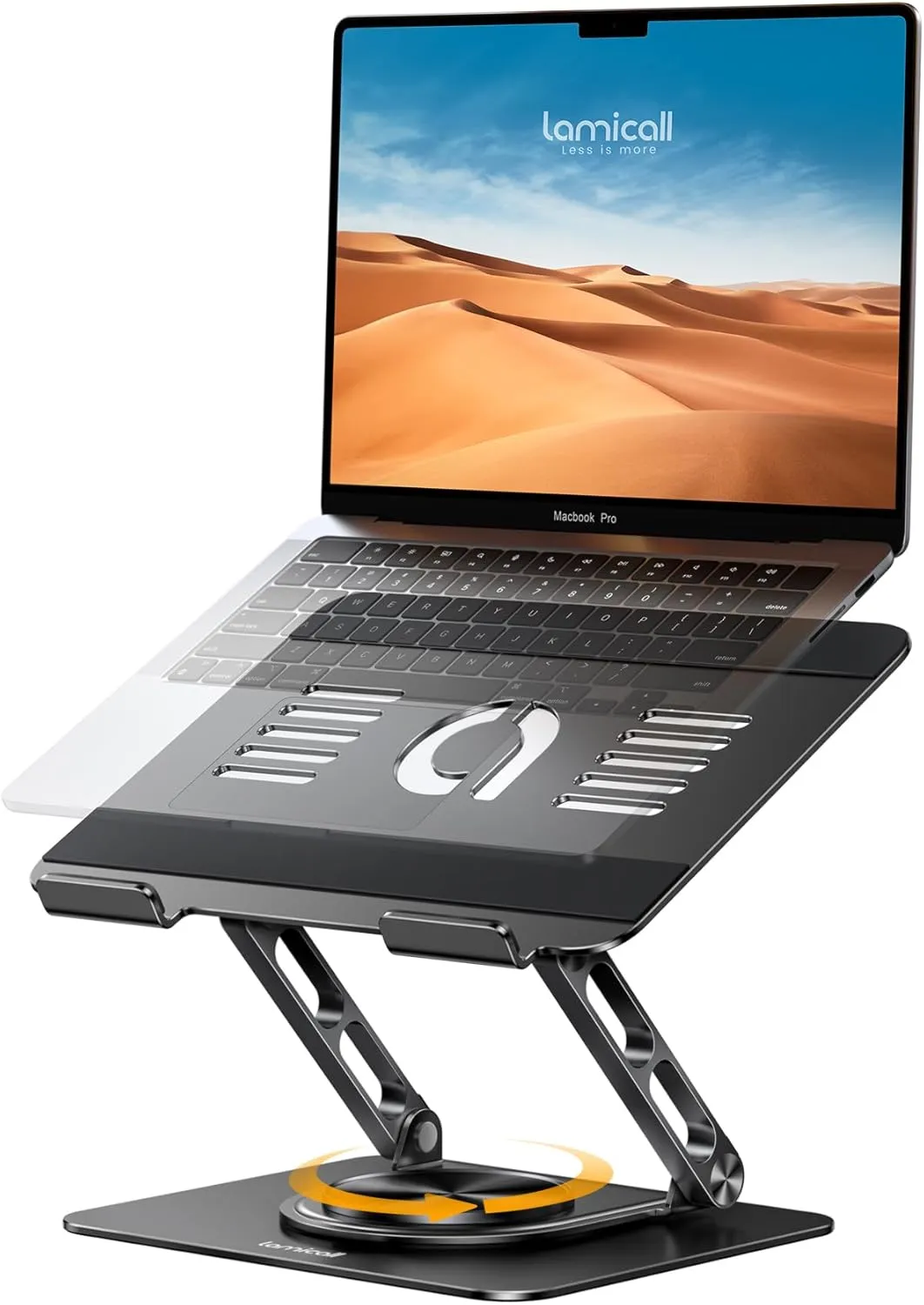
Lamicall Adjustable Laptop Stand
An adjustable laptop stand that raises the screen closer to eye level when using a laptop with an external keyboard and mouse.
 Available at Amazon
 External monitors are generally easier to adjust because they can be raised, lowered, or mounted independently of the keyboard. Using an adjustable monitor arm can make fine-tuning monitor height much easier, especially when desk height cannot be changed. One example is the VIVO Single Monitor Arm.
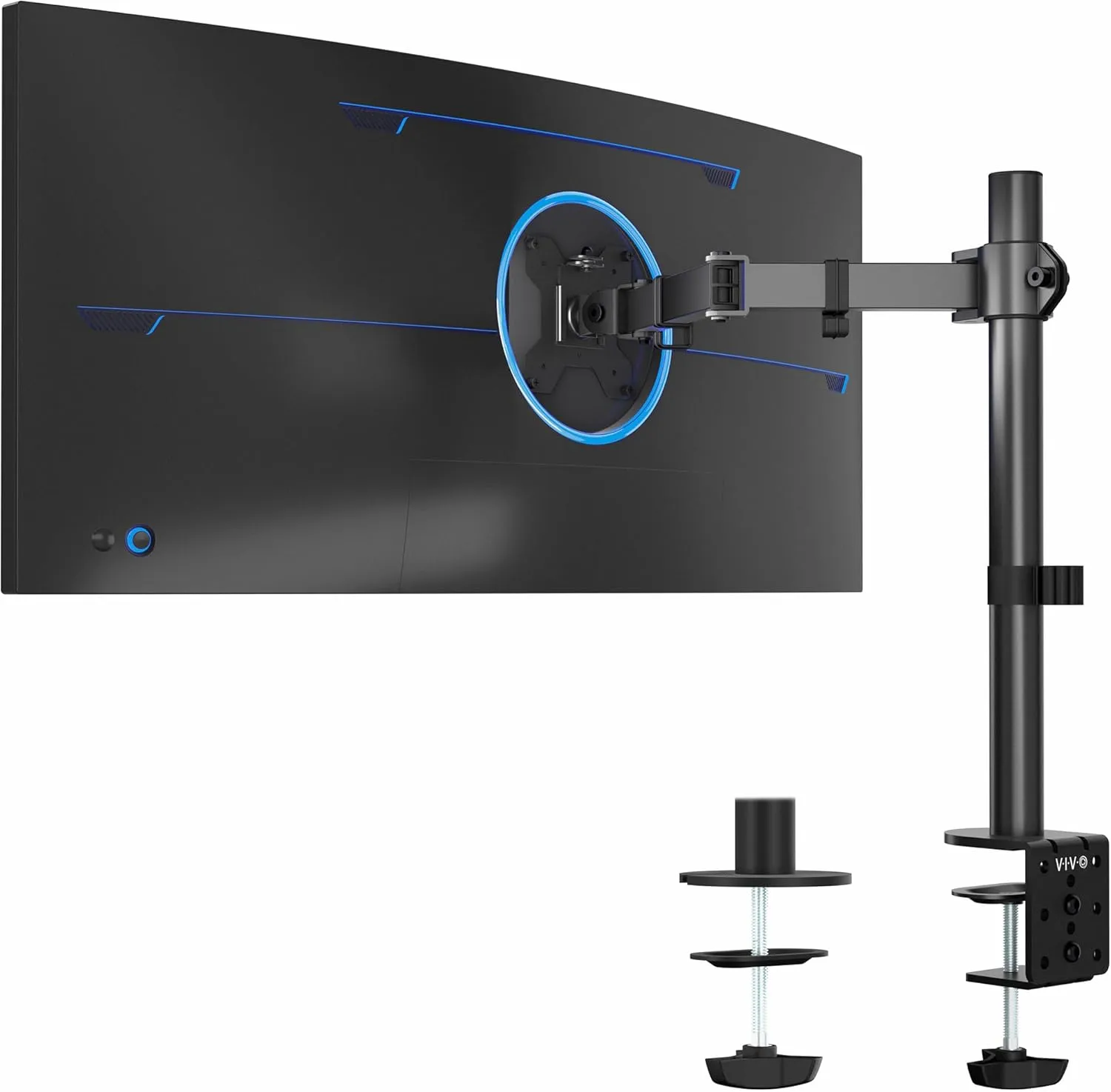
VIVO Single Monitor Arm
A monitor arm that makes it easier to fine-tune screen height and position, especially when desk height cannot be changed.
Available at Amazon Common monitor height mistakes
A common mistake is positioning the monitor too high, often based on the idea that the top of the screen must align exactly with eye level. This frequently leads to lifting the chin and extending the neck.
Another frequent issue is placing the monitor too low, which encourages looking down or leaning forward. Over time, this can increase strain on the neck and upper back.
People also tend to adjust their posture to accommodate poor monitor height, rather than adjusting the screen itself. These compensations may feel manageable at first but often lead to discomfort during longer sessions.
How monitor height fits into the rest of your setup
Monitor height works best when chair height and desk height are already set correctly. If your chair is too low or your desk is too high, it becomes harder to position the monitor comfortably without introducing other issues.
Thinking of monitor height as part of a connected system makes adjustments more intuitive. Once your screen is positioned comfortably, it becomes easier to fine-tune keyboard and mouse placement without straining your neck or shoulders.
Final thoughts
Setting monitor height for comfortable sitting is about supporting a neutral neck position rather than following rigid rules. When your head stays upright and your eyes naturally look slightly downward, long periods of screen use tend to feel noticeably easier.
Because posture can change with fatigue, it’s worth revisiting monitor height occasionally rather than treating it as a one-time setup task. Small adjustments can help maintain comfort throughout the day.